Trace formulas
See what a number depends on
Precedents shows which cells feed into a formula. Dependents shows which formulas use the selected cell.
Trace formulas, spot possible issues and compare changes — without leaving Excel.
Windows64-bit Excel 2016 or laterWorks offline
Your workbook stays on your computer.
Select a formula cell, then press the default shortcut Ctrl + Shift + [ or choose Frank → Precedents on the Excel ribbon. Click a listed cell or use the Up and Down arrows to highlight it in Excel. In this example, a total of 100 uses a price of 5 and a quantity of 20. Both windows stay in view as each input is highlighted.
For analysts, model reviewers and students. Work with the spreadsheet already in front of you. Frank helps you follow its formulas and decide what needs a closer look.
Follow a calculation, review a possible issue or see what changed.
Precedents shows which cells feed into a formula. Dependents shows which formulas use the selected cell.
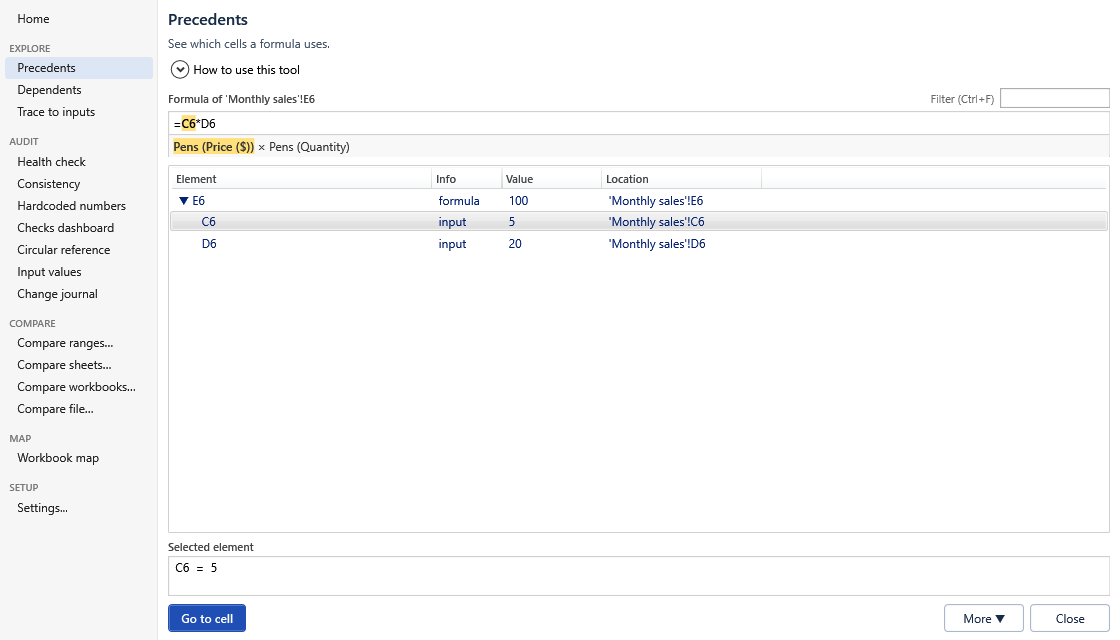
Optional: the formula in words. Turn on formula explanations to read labels like “Price × Quantity” alongside the cell references.
In this example, a price of 5 and a quantity of 20 give a total of 100. Select an input to inspect it, then choose Go to cell to continue in Excel.
Run Health check on a selection, sheet or workbook. Find unusual formula patterns, numbers written inside formulas and error cells in one review list.
Select a result to preview its cell. Choose Go to cell to work there, or Export to new sheet to share the list.
Watch the scan’s progress or stop and keep the results so far. Scan report explains which checks finished and any gaps. A result is not automatically a mistake.
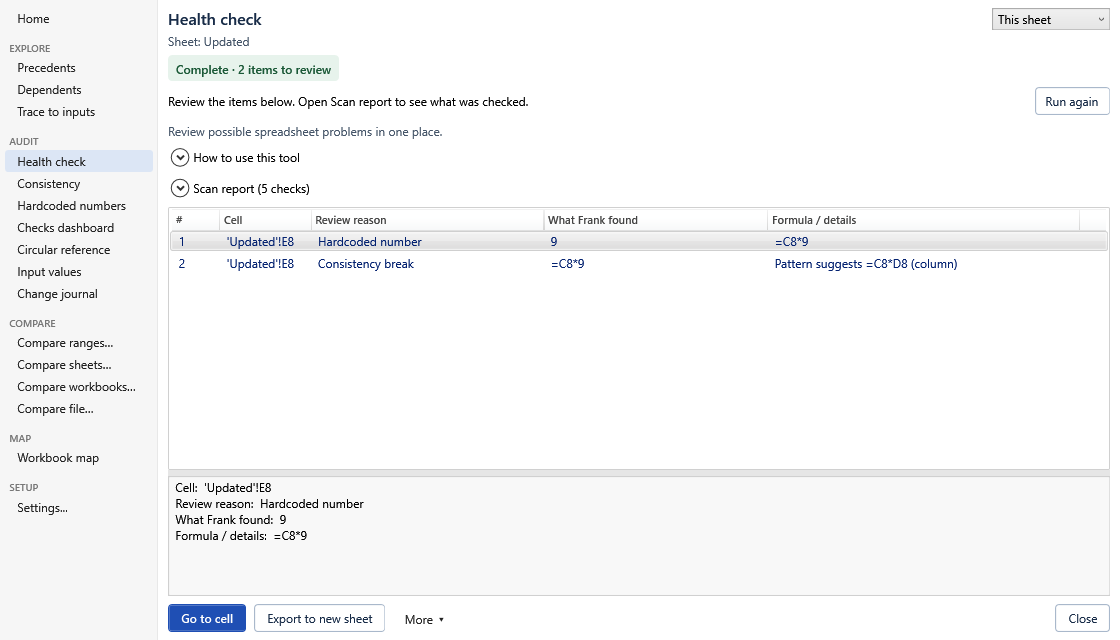
A number worth checking. The 9 in =C8*9 is typed directly into the formula. Check whether it should come from an input cell.
All screenshots use fictional example data; select an image to see the original full size.
Compare yesterday’s price list with today’s. See the original and compared values side by side, filter by the kind of change, and open either cell in Excel.
Use equally sized blocks: cells are matched by position, not their business labels. Formatting is not compared.
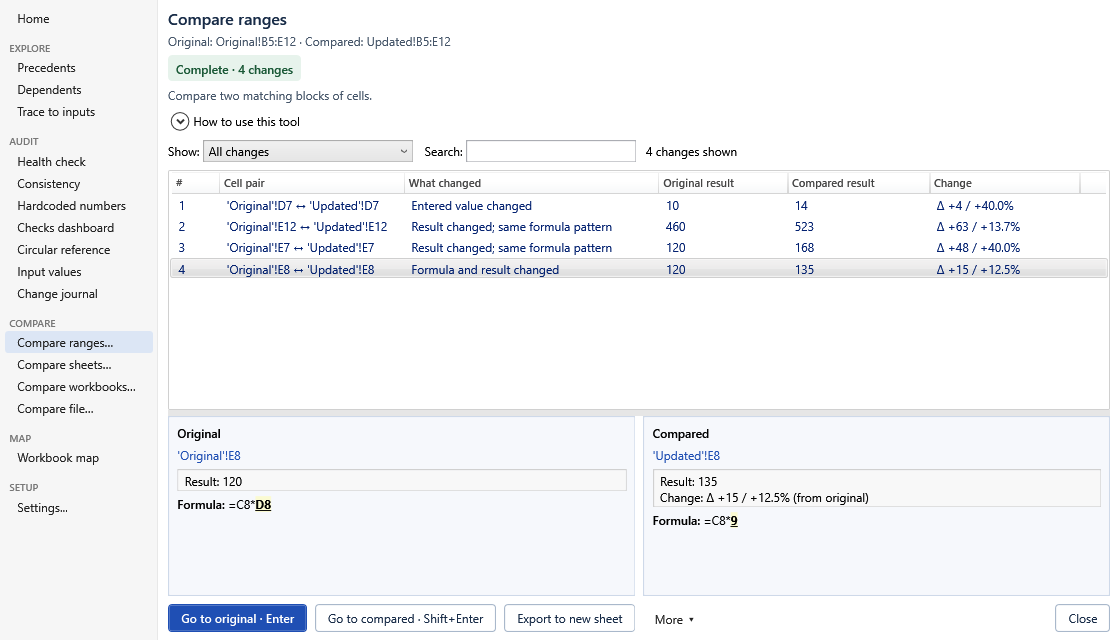
Choose Save before-edit copy before making changes. It remembers formulas and current values until Excel closes; it does not save a file. Then select the edited range to compare it with that copy.
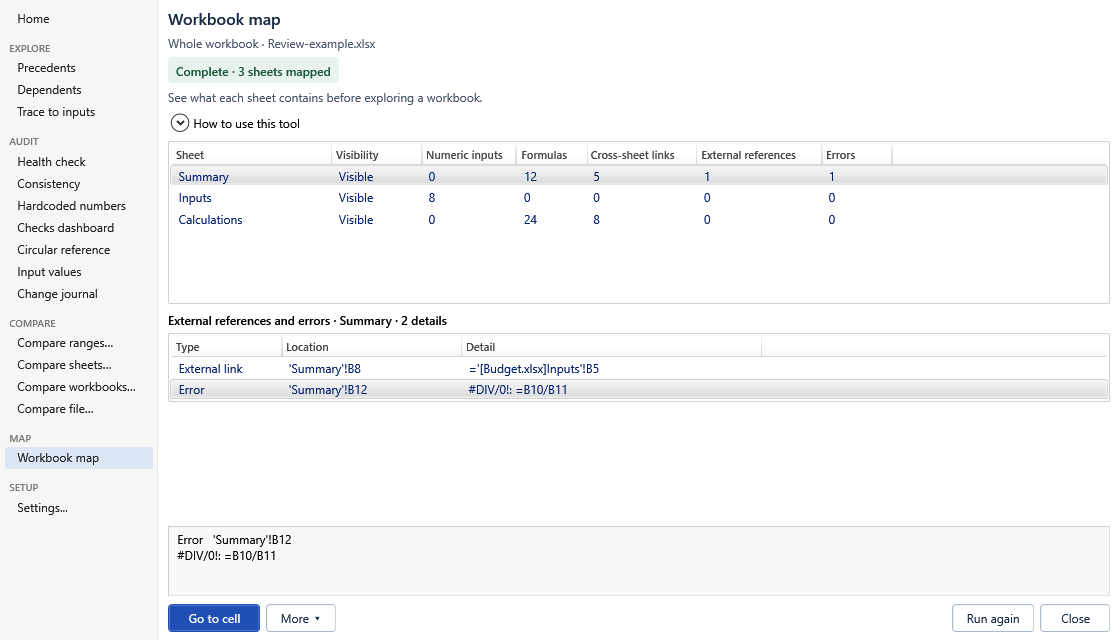
Workbook map shows what each sheet contains: inputs, formulas, links and errors. Select a sheet to inspect its external references and errors. The More menu also offers a combined list from all sheets.
In this example, Summary contains a link to another file and a formula returning #DIV/0!. Select either entry to inspect it. An external reference is not necessarily an error. Hidden sheets stay hidden while you browse; choose Unhide and go to open an ordinary hidden sheet.
Formatting shortcuts, input review and workbook navigation are included too.
Open tools from the Frank tab in Excel. Each includes a short How to use this tool guide.
Excel shortcuts and QAT remain available. If Frank registers the same key combination, it runs Frank instead; another add-in or macro can later take it over. Reassign or unbind Frank’s keys in Settings › Shortcuts. Ribbon commands remain available.
Built for working locally in Excel. Clear security notes help your IT team assess Frank before you install it.
The add-in works offline, without telemetry or automatic update checks. Paid access uses a local licence file, with no account sign-in.
Frank installs in your Windows user folder without admin rights. Your organisation’s software policy still applies. Check the setup requirements.
Reviewing and comparing do not change cell values or formulas. Navigation may reveal hidden cells; exporting adds a sheet. See the security and IT notes for the full details.
The full toolkit, whichever plan you choose. Try it free for 14 days — no card required.
Included in every plan: all Frank tools, updates during your licence and email support. Each licence is for one named person.
Prices in Singapore dollars. Annual licences are renewed manually — no automatic charges. 30-day refund policy.
Email support@frankforexcel.com to confirm the price, payment method and delivery time before paying. PayNow is currently available for Singapore customers. Outside Singapore? Contact us first to check whether we can support your payment.
In Frank 1.0.36 or later, open Settings › Help / licence › Activate paid access on this PC and choose Draft activation email. Your email app opens a draft with the PC’s activation code included. Add your order details, review it and send. After payment is confirmed, you receive a licence file for that PC. Choose Install licence file on the same page. Frank does not send the email for you. No account or ongoing internet connection is needed.
No email app configured? Paste the copied draft into webmail, or use Copy activation code. Using another personal PC? Request a separate file from that PC under your named-person licence. There is no fixed PC-count limit for the same person; licences cannot be shared with other people. Contact us for a replacement after changing PCs or reinstalling Windows. Existing licences keep working after an update.
Compatibility, installation and how Frank handles your workbook.
The installer is not yet code-signed, so Windows may warn or block it. Download only from frankforexcel.com and follow your organisation’s software policy. See the installation instructions, or email support@frankforexcel.com if you are unsure.
Select a formula and press Ctrl+Shift+[. Explorer shows its direct inputs; nested functions and ranges can be expanded. By default, referenced cells do not expand into their own formulas. Turn off Stop at referenced cells in Settings › Tracing to explore further, or use Trace to inputs to find upstream inputs. Optional formula explanations appear inside Explorer. Select an entry to inspect its cells in Excel.
Run Hardcoded numbers for a focused list, or Health check for a broader review. Choose the workbook, sheet or selection to inspect. Common unit constants are excluded by default. A number inside a formula may be intentional — for example, a text-position argument — so a result is not automatically a mistake. Health check also looks for unusual formula patterns, error cells and broken names. When enough references can be checked, it can identify formulas that might not be used elsewhere. Read any scan limitations before drawing conclusions, and export the results to share them.
Yes. Scans show progress and let you stop while keeping the results found so far. Percentages describe the current step or sheet, not time remaining. Some preparation steps use a moving bar instead. Use Run again for a fresh scan. If Health check finishes with gaps, open Scan report to see which checks could not finish and what to do next. An individual Excel operation, such as opening a comparison file, may need to finish before the scan can stop.
Yes. Open Settings and use Find a setting. General lets you turn side-by-side viewing on or off, enlarge text and adjust list spacing. Tracing lets you look for dependents on this sheet, in this workbook or across open workbooks. To learn a tool, expand How to use this tool in its window. Keyboard reference is under Help / licence, and section resets are under Troubleshooting.
No. Frank reads formulas and cell values locally through Excel. Its explanations and checks use programmed rules, not an AI model. It does not upload your workbook. Findings are prompts for review, not a guarantee that a model is correct.
You can keep using Excel shortcuts and the Quick Access Toolbar (QAT). When Frank registers an overlapping shortcut, that key combination runs Frank instead of Excel’s usual command. Another add-in or macro can later take over the same combination. Reassign or unbind Frank’s keys in Settings › Shortcuts; Frank’s ribbon commands remain available. Compatibility with other add-ins can vary.
Explorer, audit scans and comparison inspect your workbook without changing cell values or formulas. Navigation can reveal an ordinary hidden sheet and the target’s rows or columns on an unprotected sheet. These visibility changes may trigger a save prompt. Colour, number format, scaling and AutoColor commands save Frank Undo before applying changes, with a limit of 20,000 cells per command. Formula map adds highlighting rules you can remove with Clear formula map. Exporting results adds a worksheet. Change journal’s Put back command changes a cell only when you explicitly choose it.
The tools stop running. Your keys, colours and settings stay exactly as they were. Install a licence file from Settings › Help / licence and everything comes back.
Not currently. Frank requires Windows and 64-bit desktop Excel 2016 or later, including Microsoft 365. It does not run on Mac, in Excel for the web or in 32-bit Excel.
Yes. Email support@frankforexcel.com with the Excel task you want to make easier, even if it needs a new tool or function. A small example using made-up data helps. I read every suggestion, though I can’t promise to build them all.
It’s a name and a play on being frank: clear, direct and honest. That’s the idea behind the tool — helping you see what a formula is doing and which parts of a model need a closer look.
I’m Averyl Seah, based in Singapore. I work on the buyside, with experience in investment banking and private equity. I built Frank for the model review and formatting tasks I kept doing in Excel.
During university, I interned at Lazard, Temasek’s GenZero, Novo Holdings, UOB Investment Banking and PwC Deals Advisory. Frank grew out of that hands-on experience: tracing someone else’s formulas, checking a model and making sense of what changed.
Frank for Excel is my independent project, not a product of or endorsed by any of these firms or my current employer. This is its official website. If something is wrong or missing, tell me — I read every email.
Connect on LinkedIn